Overview
User Interface
Header
At the top, we have our Header Bar which will list the version of AAVJ we are using, as well as the name of our project.
Composition Control
Beneath the toolbar on the left side are the master controls for your composition.

- The ‘X’ button located to the left of the
Composition Faderwill trigger all layerclearbuttons, effectively clearing all layers.
To the right of that is the ‘Composition’ level fader. This will adjust the overall output opacity of the composition. This is reflected in the ‘master output’ located in the bottom of the interface above the ‘Output Monitor’.
Tool Bar
In the tool bar on the left side, you will find some familiar items like File, Edit, View, and Help. Unlike previous versions of AAVJ, AAVJ 2025+ uses an internal saving system that packages all user inputs into a .TOX file as a project, rather than saving the .TOE file directly. This allows users to save and load compositions to be used in future versions of AAVJ as it develops.
Saving the .TOE file should be avoided completely in AAVJ 2025+.
In AAVJ 2025 On the right side, there are a few icons:
These are toggle buttons for LINK Mode, Screen Output Config, and Settings.
Link Mode
is AAVJ's built in system for dynamically mapping UI elements with MIDI, OSC, DMX, etc. More on this later in the docs.
Screen Output Config
Is a simple config window that allows you to send your AAVJ Composition to screens that you have available on your machine. in AAVJ 2025, this is very rudimentary and will be built out in future versions.
Settings
The 'Settings' icon pops open the settings menu, where users can adjust their composition settings, set inputs and outputs, verify their user license, visit the documentation, discord link, etc. This is where users will adjust the main configurations for their project.
Column Launching
To the right of the Composition Controls, there are numbered buttons that will instantaneously launch an entire column in your project:

These can be useful for preparing arrangements of visual elements into a vertical column, and launching them with a single cue. The column launch buttons adjacent to the Composition Controls will launch all slots below them, even those contained in a Layer Group.
Layers
On the left, you will see our Layer Controls.
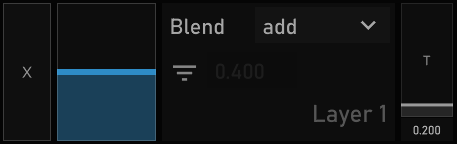
- The X button, or 'clear' button, will transition the scene on that layer to a blank output. Pressing this ‘X’ button twice in a row will leverage the
VRAM Cleanup Scriptand unload the last played scene on that layer, purging its unused VRAM from our cache.
Layer Level
The Layer Level fader controls the opacity of an individual layer. At '0', the layer is invisible to the overall mix. At '.5' , the layer is visible with a mix based on the blend mode selected for that layer. at '1.0', that layer fully overrides the layers below it in the mix.
Blend Modes
-
To the right of that, you’ll see the
blend modefor this layer, leveraging all the blend modes in a typical composite TOP, blending this layer with the previous layer.NOTE: When using the 'Multiply' blend mode in combination with a layer with zero alpha, layer mix will appear as blank. This is inherently just how the Composite TOP handles this blend mode and can be confusing- so it is mentioned here.
Fader Filtering
Under that is the fader filtering for the level fader to ease your mixing. It works by applying a filter CHOP to that value to smooth out sudden changes. Press the  button to enable fader filtering, and adjust the value to increase or decrease filtering on that layer.
NOTE: This adds CPU time per layer, but can be useful for users with a mouse or touchpad for smoother mixing. Use with discretion.
Layer Name
- In the same layer control box, you will see the name of your layer, i.e., ‘Layer 1, 2, 3’ etc. Users can double-click that layer name to assign a different one manually.
Layer Order
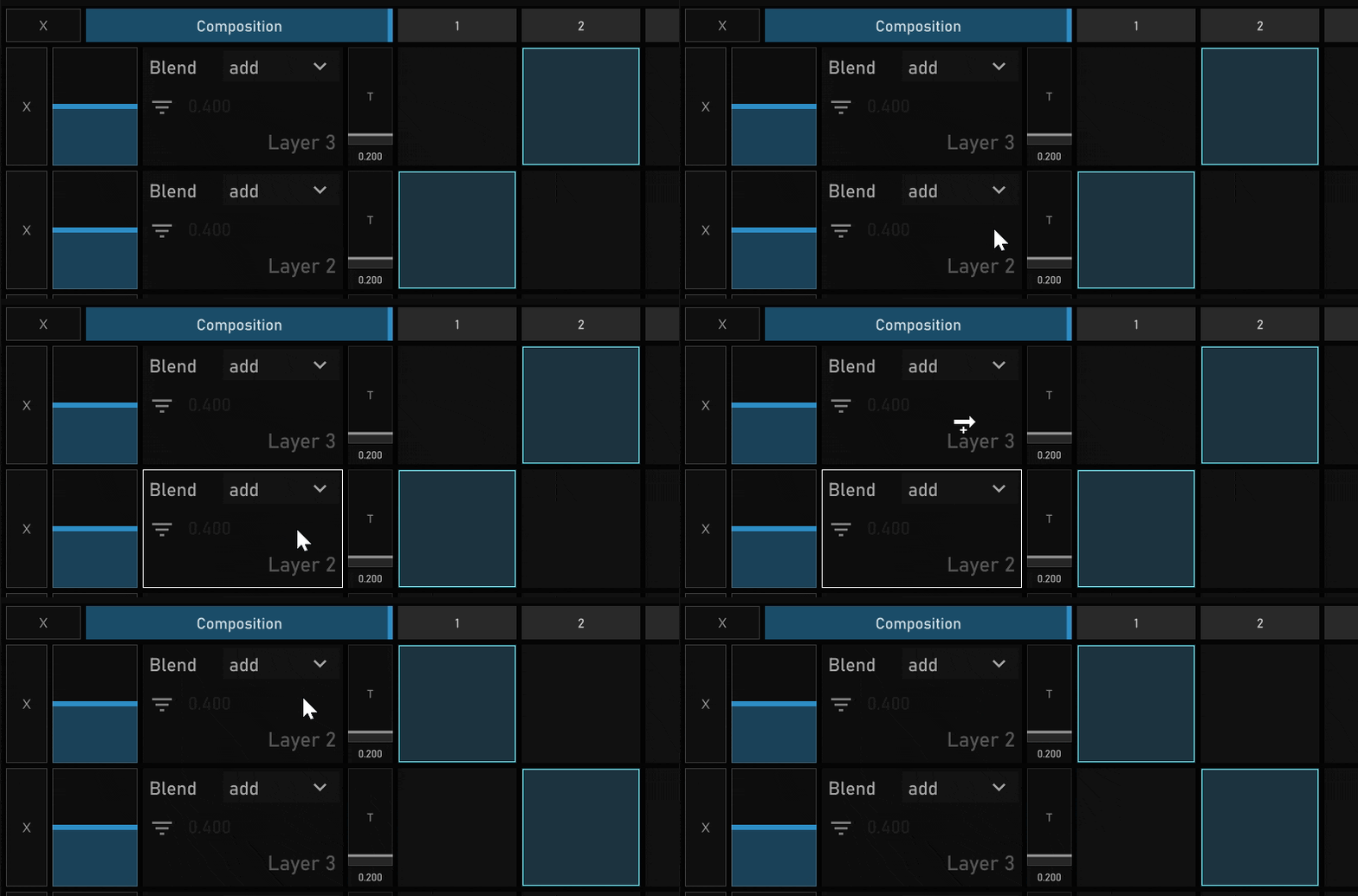
- The order of layers can be swapped by right-click dragging the layer control box of one layer and dropping it onto another layer. This will affect the order in which these layers are composited into the mix.
Transition Time
To the right of the layer control box is the transition time fader, which will determine how long it takes to fade between scenes on that layer. Use the vertical fader or enter a float value to determine the filter length of the transition to a new scene.
Scene Slots
-
To the right of the layer control box on each layer are the scene ‘slots’. This is where users will drag and drop their scenes, movies, and sources. A thumbnail image will appear when an AAVJ compatible .TOX network, movie file, or source is added from the file browser or built-in asset browser lister.
-
Slots can be swapped with any other slot on any layer by right-click dragging and dropping onto a different scene slot.
Scene Management
-
Users can also clear a scene slot by double right-clicking and selecting ‘Clear’, effectively removing that scene from the project.
-
Left-clicking any slot in a layer will activate that scene in that layer, and inputting that into the mix.
-
When active, a scene slot’s background and border will be colored red to indicate its status. Only one scene may be active at a time on each layer.
Mid Bar

Below our layer grid, we will see our project FPS, as well as how much VRAM or video memory is loaded into the project. This will vary as the interface is used due to the dynamic ‘VRAM Cleanup Script’ AAVJ uses to manage memory on the fly.
The word 'VRAM' is a clickable button that manually purges any unused VRAM from the scenes in your project.
To the right of the stats container is the horizontal scroll bar which is used to pan across all the available content slots in your project. Users may click drag this slider, or use LINK Mode to map that to any hardware or input values.
Control Section
-
In the bottom section, on the left side, we have our main
output window. This is where the master mix of all your content and effects will be displayed. -
Below that is our
preview output. This will display whichever layer is selected, before it is integrated into the master mix. Users may adjust the size of either window by click-dragging theS handle between them and adjusting the height of the container.
To the right of this is our Control 1 Panel .This houses our Parameters menu, Asset Browser, and custom component slots.
Parameters
The ‘Parameters’ tab is where custom parameters for content or effects that we will build will populate when right-click focusing on any scene or effect in the composition.
- Adjacent to that is the
Assetstab, where we can quickly access files from our computer and bring them into the composition.
Users can designate any particular folder on their system to populate assets from.
- Scenes - are .tox networks that are used as content in the project. See ‘Scenes’ for details on how to compile an AAVJ compatible .tox network. Scenes are only compatible with slots in the layer grid.
- Effects - are .tox file networks that receive an input and affect the output. These are only compatible with the ‘Effects’ panel to the right of Control 1.
- Movies - are any TouchDesigner compatible image or video files. See list of all compatible image/video filetypes here: When dragged into a scene slot, AAVJ will automatically load an ‘AA-MoviePlayer’ instance into that slot, located in “/AAVJ/System” in the project file structure.
- Sources - The sources lister will populate any active NDI or Spout sources on the network. These can be drag/dropped into any scene slot in the layer grid. AAVJ will automatically populate an
AA-NDI-INorAA-SyphonSpout-IN, located in/AAVJ/Systemin the project file structure.
Custom Components
Using the plus and minus symbols, we can add or remove additional Component Slots for drag and droppable custom components. See details on constructing an AAVJ compatible .tox component here.
Custom Components can be any container-based .tox network, enabling panel capability and global op referencing for data sharing across your project. Users can build dynamic custom functionality in these components and leverage the ability of TouchDesigner in their own way.
To the right of that are our panel containers for our Effects, as well as the exposed values that are working within our LINK system - which consists of MIDI, OSC, or any CHOP inputs we want to use to control our networks or interface. More Custom component slots are also available in this panel.
Log

At the very bottom of our interface is the ‘Log’ component. Whenever users interact with the interface, AAVJ will send confirmation or error messages to the log for user awareness of what’s going on in the project.
Building Compatible Networks
Let’s take a look at a simple AAVJ compatible content network, and go over just a few requirements for compatibility with AAVJ. You can find this network in the AAVJ file structure under ‘Assets’.
-
To start, in a blank TouchDesigner project create a Base COMP named 'scene'.
AAVJ Compatible scenes should always be Base COMPs, not Container COMPs. Container COMPs use panel values which are not necessary for AAVJ scenes. Container COMPs should only be used for custom Components.
-
Inside this Base COMP, as an example we can create a noise TOP. set the resolution to the resolution you typically use in your workflow, i.e. 1280x720 or 1920x1080.
-
The first required part of our network is an Out TOP at the end of our TOP output chain named ‘out1’. This is the operator that AAVJ references to output your content into the mix.
-
The next requirement of an AAVJ compatible network is a Fit TOP attached to our Out1 named ‘thumb’.
This will serve as the thumbnail that our interface displays for that network ( a Text TOP can also be used as the input to the Fit TOP instead of an image).
-
The fit operation should be set to ‘Fit Outside’, and the resolution set to 128x128 or 256x256 to save on VRAM.
-
Find the lock icon and lock this operator so we don’t eat up unnecessary resources in our interface.
To add custom parameters to a scene, right-click our 'scene' base COMP and hit Custom Parameters. Here we can add parameters by type that will be attached to this component. To use those parameters in your network, go back inside and use a Parameter CHOP or Parameter DAT.
Right click the 'scene' base COMP and save the .TOX file into '/AAVJ 2025/Assets/Scenes'. Once you do this, if your scenes Asset Browser is aimed at this location, you should see it populate as an item there.
Drag N Drop
Let’s go ahead and drop our saved scene into our project at Layer 1 Slot 1. As you can see the thumbnail for that scene appears in our project.
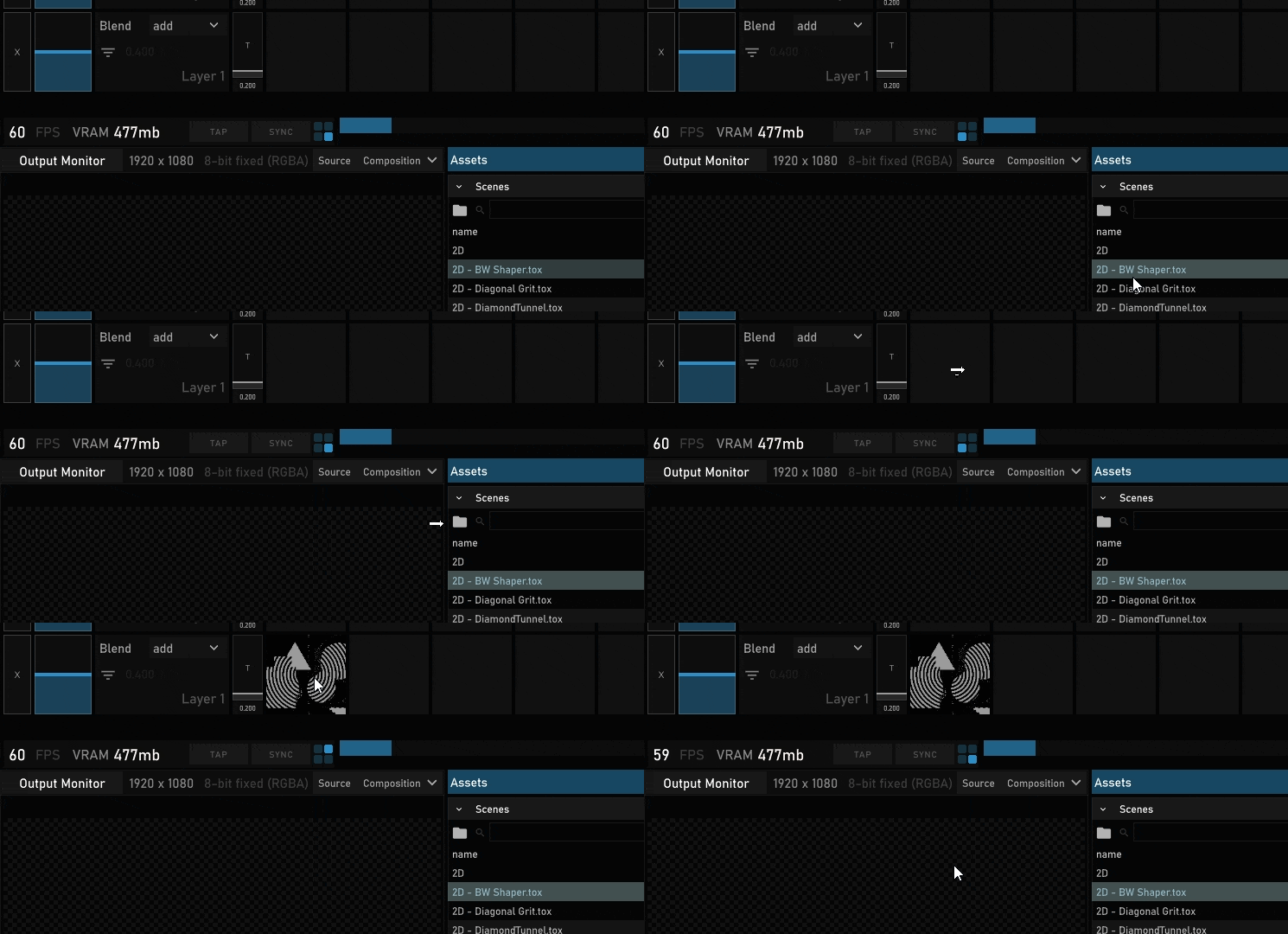
Additionally, the custom parameters associated with that tox network will appear in the Parameters widget when we right-click on the thumbnail.
You can activate this content slot in your mix by left-clicking it to launch it on that layer.
Navigation
You will notice when you right-click many of the interface components, they become highlighted with a white border.
- To use the
navigatefeature, Right-click the container you want to navigate to, and use the shortcut ‘Ctrl + N’.
This will open a floating pane of that destination where you can work on the contained network in real-time.
- Just FYI: The first time you use this shortcut, you may experience a CPU hang or hiccup depending on the size or complexity of your network.
This floating window is essentially an instance of network mode where you can move freely throughout the project. It is highly recommended using shortcuts U and I to navigate Up or In, as scroll navigation can be slow and sometimes unstable on some systems.
Any interface component that highlights with a white border when focused on is accessible with our navigation functionality.
Effects
Effects are structured nearly the same as content toxs, but have one additional requirement.
- Inside an effect tox, at the beginning of your TOP chain, you need an ‘In TOP’, as well as a Select TOP connected to the second input of the In TOP. The TOP parameter of the Select TOP should be ‘../in1’.
The Effects panel features an effect layer for every content layer in your project, as well as a Composition layer at the top which will apply to the final mix of all your layers.
-
When effects are dragged onto an effects layer, an effect component will populate, featuring the name of that effect file, a ‘dry/wet’ fader or adjusting how much of the effect you want, a ‘bypass’ toggle button for hard enabling and disabling an effect, as well as an ‘x’ momentary button for removing that effect.
-
Effects can be right-click drag and dropped onto any other effect in that layer to swap their order.
Toolbar
Settings
Starting from the right side is the ‘cog wheel’ icon button which will expand the composition settings. Users can adjust the canvas resolution of the project, the number of layers, the number of slots in each layer, as well as which display they want to output to.
Saving
To the left of the settings button is the ‘Save Project’ button. By clicking this button users can save their composition, as well as any changes they have made to the networks in the project.
Link
Pressing the Link chain button will enable ‘LINK’ mode, where users can input/hardware map any of the components in the project which are highlighted. This is done by right-clicking any highlighted component, and adjusting any input value, fader, or button value that is routed into the LINK system. Compatible values can be viewed on the ‘LINK’ tab.
Values exposed in the LINK Tab can be attached to any parameter of any scene or effect in the project by opening up the parameters tab, right-clicking a scene or effect, and then click-dragging a value from the LINK Page onto any custom parameter, similarly to how you typically would in TouchDesigner.
Any values that are visible in the LINK tab will automatically be available for use with the UI LINK system.
As the quantity of CHOP values grows in the LINK system operator, visibility will be affected by individual values. To navigate this panel, middle mouse drag in or out to zoom in on these values, or scroll to go up and down.
NDI/Spout Output
To the left of the Link button is the NDI/Spout output menu. Users can add or remove outputs by using the + and - buttons located next to the headers of their respective output types. Users can designate the name of that output source, and any applicable parameters for that output type. To activate the output, press the output power button toggle so it turns green.
OSC Input/Output
Similar to the NDI/Spout output menu, Users can set OSC Inputs to be ingested into the LINK system and used within the project. Additionally, users can set up OSC outputs which will output values from enabled components in the interface itself for linking across multiple instances of AAVJ, or used in tandem with other software applications.
Sync
All the way to the left of these buttons is the ‘SYNC’ button to enable the experimental ‘SYNC Module’. By enabling the SYNC module, users will be able to sync any AA TOOLS compatible interfaces so that they share relevant data to enable multi-TouchDesigner instance Syncing, enabling more complex system integration of different tools or instances of AAVJ.
VRAM Cleanup Script
The VRAM Cleanup Script is key in optimizing VRAM usage in your project in real-time. Essentially how the script works is as follows:
- When you activate a scene in your layer grid, that scene ID is loaded into a 4-row table, effectively the layer history, or ‘layerhist’.
Checks
This Layerhist table is monitored whenever it changes and is run through a series of checks to determine whether or not a particular scene should be collapsed or not. The cleanup script is applied when:
- If the first ID is different than the second ID and third ID, the third ID network is collapsed.
- If the -1st and 3rd ID are the same, that network is only collapsed when a 4th network is activated which is different than the first and second.
On execution, The VRAM cleanup script looks at the target scene, finds all TOPs that use ‘use input’ for their resolution and switches those to ‘Eighth’. It then bypasses all TOPs recursively in the network and cooks the network once, effectively purging close to 8x the total network VRAM Usage. TOPs that use custom resolutions are not affected aside from the bypass and cook at the end of the script.
When a scene is reactivated on a particular layer, this script is reversed. TOPs that use ‘Eighth’ for their resolution are reverted to ‘Use Input’, and all TOPs in the network are unbypassed. Note: This may cause unwanted behavior if bypassed TOPs are included in the output chain.
It is highly recommended to keep the VRAM Script enabled for stability and VRAM management during performance, however, this script can be disabled in the settings menu.
Optimization
VRAM management is very important in compiling scenes within AAVJ / TouchDesigner. There are a few general rules to consider when working within AAVJ and TouchDesigner in General.
-
It is recommended to keep .tox networks to less than 800mb of VRAM per scene. VRAM amounts exceeding this may cause performance hangups or performance costs both cumulatively and individually.
-
Lag CHOPs, Filter CHOPs, Timer CHOPS, and any other CHOPS that cook every frame will affect overall performance in your project. It is recommended to try and limit the usage of these operators whenever possible. See ‘COOKING’ to understand a bit more of how you can get the best performance out of your networks in TouchDesigner.
-
32-bit textures can also dramatically affect performance and VRAM usage in the project. Sometimes, 32-bit textures are necessary for a desired accuracy in simulations or TOP networks. However, 16-bit can often be used instead for close to the same accuracy, with less VRAM usage. Even in instances where 32-bit must be used, it is recommended to bookend those processes with operators that revert the TOP chain back to 8-bit RGBA before output.
Notes
AAVJ is in active development and is constantly in refinement to achieve optimal performance. I appreciate the support in using AAVJ, and I hope users will see the value in a streamlined interface for live performance.
If you’d like to support the development of AAVJ, check out my Patreon or consider buying a license for the most up-to-date and capable versions.